7‑Night Mediterranean Cruise: Port‑Day Data Strategy (Italy–France–Spain)

Blog

7‑Night Mediterranean Cruise: Port‑Day...

7‑Night Mediterranean Cruise: Port‑Day Data Strategy (Italy–France–Spain)

30 Oct 2025

7‑Night Mediterranean Cruise: Port‑Day Data Strategy (Italy–France–Spain)

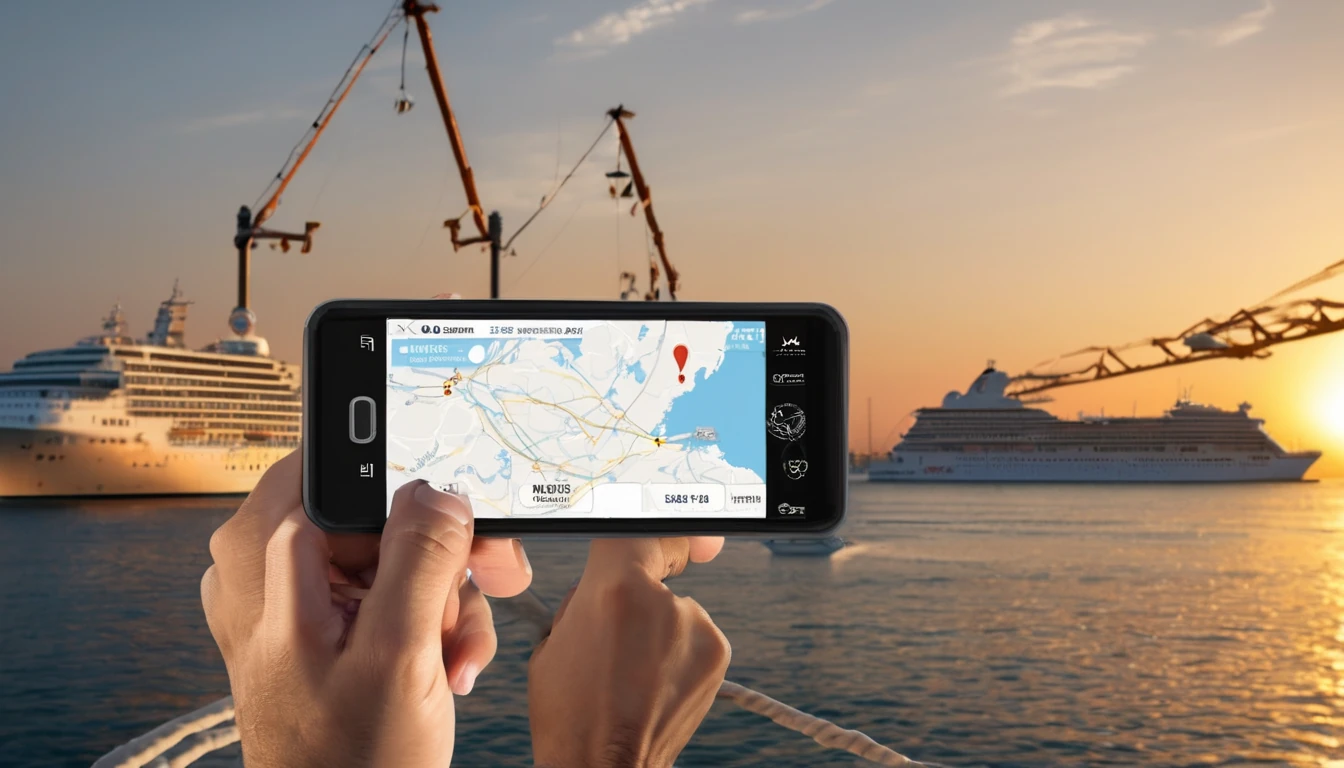
Planning a 7‑night Med sailing and wondering how to handle mediterranean cruise internet? Here’s the short answer: rely on ship Wi‑Fi for light use while at sea, and switch to a local or regional eSIM every time you step ashore. That gives you fast, affordable data for maps, rides, tickets, messaging and calls in Italy, France and Spain—without bill shock. This guide walks you through what ship Wi‑Fi can and can’t do, the best eSIM mix for a typical week-long itinerary, and the exact steps to toggle your data each day in port. You’ll also get practical WhatsApp calling techniques and offline map tips that work whether you’re zipping to Sagrada Família, ferrying to Capri, or navigating Cannes tender times. If you’re travelling from North America or joining the cruise pre/post in the US, we’ve flagged the ideal eSIMs for that too. By the end, you’ll have a clear, repeatable routine that just works.

A typical 7‑night Med loop (Italy–France–Spain)

Most 7‑night itineraries include: - Italy: Rome (Civitavecchia) embark/debark plus one of Naples, Livorno/La Spezia (for Florence/Pisa), or Genoa. - France: Cannes, Villefranche, Toulon or Marseille. - Spain: Barcelona and/or Palma de Mallorca. - One or two sea days.

You’ll have 6–9 hours in port most days—perfect windows to use a local network via eSIM for fast, cheap data. At sea, you’re on the ship’s satellite Wi‑Fi if you need connectivity.

Ship Wi‑Fi reality check (so you can plan properly)

Satellite internet at sea has improved, but it’s still not land‑like. Expect: - Price: Day passes or week bundles often cost more than a good eSIM for the entire trip. - Speed/latency: Browsing and messaging are fine; large uploads, video calls and cloud backups are hit‑and‑miss, especially at peak times. - Coverage gaps: Near straits or during heavy congestion, performance can drop. - App limits: Some cruise lines throttle streaming or block large downloads.

Use ship Wi‑Fi for: - Messaging and email. - Light browsing and itinerary checks. - Occasional Wi‑Fi calling when the connection is stable.

Use a mobile eSIM on port days for: - Fast maps/navigation, ride‑hailing and ticketing. - Uploading photos/video, social media, work calls. - Price‑stable data with no surprise roaming.

The winning approach: eSIM in port, Wi‑Fi at sea

Step 1: Pick the right eSIM coverage

  • Best all‑rounder for Italy + France + Spain: Esim Western Europe. One profile covers your whole route—no daily plan swapping.
  • Country‑by‑country (if you’re spending longer in one place pre/post cruise):
  • Esim Italy for Rome/Naples/Florence days.
  • Esim France for Marseille/Cannes/Nice area.
  • Esim Spain for Barcelona/Palma.
  • Starting or ending in the US? Add Esim United States for stateside days.
  • Coming from Canada/US and need coverage before/after? See Esim North America.

Browse more options by country on Destinations.

Data amount guide for a 7‑night cruise: - Light user (messaging, maps, a few rides): 3–5 GB total. - Standard traveller (maps, social uploads, some video, a few calls): 5–10 GB. - Heavy user (work calls, hotspot, HD uploads): 10–20 GB.

Pro tip: Choose one regional plan with a validity spanning your entire cruise. It’s simpler and usually better value than stacking three single‑country plans.

Step 2: Pre‑embarkation setup checklist

Do this at home or on reliable Wi‑Fi the day before: - Buy and install your eSIM via QR or in‑app. Don’t activate data yet if your plan allows delayed activation. - Label your lines (e.g., “Primary” for your home SIM, “Med eSIM” for the travel line). - Turn off data roaming on your Primary line to protect against accidental maritime roaming. - Download offline maps for Rome, Naples, Florence, Marseille/Cannes/Nice, Barcelona and Palma. - Pre‑save key places: cruise terminal, hotel, train stations, must‑see sights, restaurants. - Set WhatsApp to use your existing number (no SIM change needed) and back up chats. - Sign into airline/cruise apps while on good Wi‑Fi; download boarding passes and tickets. - Update apps and device OS to avoid big downloads at sea. - Optional: If you’ll work on board, review your VPN and collaboration tools; see For Business.

Step 3: Your daily port routine (repeat each stop)

1) Before docking
- Disable “Automatic” network selection to avoid latching onto maritime networks near the ship.
- Turn off your Primary line’s data roaming.
- Turn on your travel eSIM line.

2) On the pier
- Open Mobile Data settings. Select the travel eSIM for “Mobile Data” and ensure data roaming ON for that eSIM.
- Confirm you’re on a local land network (e.g., ITA in Italy, SFR/Orange in France, Movistar/Orange in Spain).
- Do a quick speed test/message send to confirm all’s well.

3) During your day
- Use mobile data for maps, rides, tickets and calls.
- If you hotspot to companions, keep it occasional—heavy tethering can burn through GBs fast.

4) Back on board after sail‑away
- Switch Mobile Data back to Off or to ship Wi‑Fi.
- Keep travel eSIM enabled but with data off to avoid maritime roaming.
- Re‑enable your Primary line for voice/SMS if you need it, but keep its data roaming off.

Pro tip: Set a “Port Data ON” and “Sailaway Data OFF” reminder on your phone’s calendar for each port day.

WhatsApp calling and messaging tips

  • Use WhatsApp for calls and messages throughout; your WhatsApp number stays tied to your original phone number, not your eSIM.
  • On port days, calls usually work well over 4G/5G. Step into a quieter spot and switch off HD video if quality drops.
  • At sea, use ship Wi‑Fi for voice‑only calls; avoid video unless the connection feels stable.
  • If you must call landlines, buy a small calling credit with a VoIP app as a backup.

Offline maps that actually work

  • Google Maps: Download each city area (including port and city centre) at home. Turn on “Wi‑Fi only” if you want to avoid accidental data use.
  • Apple Maps: Add key places to Guides; maps cache with use, but less controllable offline.
  • Maps.me: Pre‑download country/region files; excellent for trails and backstreets.
  • Save pins for “Meeting points,” “Tender pier,” and “Terminal shuttle” to simplify your return.

Port-by-port notes: coverage and quirks

  • Italy (Civitavecchia, Naples, Livorno/La Spezia, Genoa): Strong urban 4G/5G. Train corridors can have patchy tunnels; cache tickets. Popular providers your eSIM may use include Vodafone, TIM, or WindTre. Tourist hotspots can get congested—give apps a second try before assuming an outage.
  • France (Cannes/Villefranche/Marseille/Toulon): Solid city coverage. Tender ports (Cannes, Villefranche) can have short blackspots near the tender piers; once ashore, speeds improve. Expect Orange, SFR, Bouygues or Free depending on your eSIM’s partner network.
  • Spain (Barcelona, Palma de Mallorca): Excellent urban 5G in Barcelona. Palma is strong in town; coastal or mountainous spots may drop to 3G/4G briefly. Look for Movistar, Orange, or Vodafone.

Pro tip: If speeds feel slow, toggle airplane mode for 10 seconds or switch between 5G Auto and 4G LTE to force a fresh attachment.

Data budgeting and battery life at sea

  • Turn off auto‑upload for photos/videos until you’re on land Wi‑Fi or happy with ship Wi‑Fi speeds.
  • In social apps, set media to “Wi‑Fi only” for high‑res uploads.
  • Download playlists/podcasts in advance for sea days.
  • Carry a small power bank ashore; maps and photos draw power quickly.
  • Disable background app refresh for non‑essentials on your travel eSIM.

Common pitfalls to avoid

  • Accidental maritime roaming: Always disable “Automatic” network selection and keep data off when the ship is moving.
  • Splitting into multiple single‑country plans when a regional one is cheaper and simpler: favour Esim Western Europe unless you have long stays in one country.
  • Forgetting to install before you sail: ship Wi‑Fi portals sometimes block eSIM QR provisioning. Install eSIMs on hotel Wi‑Fi pre‑cruise.
  • Over‑hotspotting: sharing with multiple family devices can drain a 5 GB plan in a day.
  • Relying on ship Wi‑Fi for mission‑critical video calls: schedule important calls for port days or find a café with strong Wi‑Fi.

When single‑country plans make sense

Choose Esim Italy, Esim France, or Esim Spain if: - You’re adding several pre/post nights in one country.
- Your itinerary is Italy‑heavy with just a quick French/Spanish stop, and you’re happy to use ship Wi‑Fi or café Wi‑Fi in the secondary ports.
- You want a larger local data bucket for intensive use in a single country.

Working on board or travelling with a group?

  • Remote workers: Plan “heavy‑lift” tasks (uploads, key calls) for port days on mobile data. For steady connectivity at sea, sanity‑check your tools and VPN before departure; see For Business.
  • Group leaders and travel advisors: Simplify client connectivity with a standard port‑day routine and a regional eSIM recommendation. Explore co‑branded options in our Partner Hub.

Quick How‑To: Toggle eSIMs on iPhone and Android

  • iPhone
    1) Settings > Mobile Data.
    2) Turn on your travel eSIM; set it as “Mobile Data.”
    3) Data Roaming: ON for travel eSIM, OFF for Primary.
    4) Network Selection: OFF “Automatic” when near port/sea; choose a local carrier ashore.
    5) After sail‑away, switch Mobile Data OFF or to ship Wi‑Fi.
  • Android (may vary)
    1) Settings > Network & Internet > SIMs.
    2) Enable travel eSIM; set as “Mobile data.”
    3) Data roaming: ON for travel eSIM, OFF for Primary.
    4) Mobile network > Network operators: Select manually ashore.
    5) After sail‑away, disable mobile data or switch back to Wi‑Fi.

FAQ

  • Will my WhatsApp number change when I use an eSIM?
    No. WhatsApp keeps using your original number. Install your eSIM and keep WhatsApp as is.
  • Is a regional plan really better than three single‑country plans?
    For a 7‑night Italy‑France‑Spain cruise, yes. One Esim Western Europe plan is simpler, usually cheaper, and avoids mid‑week plan swaps.
  • Can I activate the eSIM without using data at sea?
    Yes. Install and set it up on hotel or home Wi‑Fi before you sail. Some plans start validity on first connection—activate the first time you step ashore.
  • Will I get 5G in every port?
    Often, yes in major cities. But networks can fall back to 4G/3G in tunnels, rural/coastal stretches or very crowded areas. Plan for variability.
  • Can I use my phone as a hotspot ashore?
    Usually, yes, but it uses data quickly. Check your plan details and hotspot only when needed.
  • I’m joining the ship in the US—what should I use there?
    Add a short plan from Esim United States. If you need Canada/Mexico too, see Esim North America.

Next step

Choose your coverage and install before you sail. For a seamless Italy–France–Spain week, start with Esim Western Europe.

Read more blogs

EU Long Stays: Fair‑Use for Nomads & Students (90/180‑Day Rule)

EU Long Stays: Fair‑Use for Nomads & Students (90/180‑Day Rule)

Planning a long stretch around Europe? Here’s the traveller‑first guide to EU fair use on long stays. Confusion often comes from mixing two different systems: immigration rules (the Schengen 90/180‑day stay limit) and telecom rules (EU roaming fair use). They are not the same. Immigration limits how long you can stay. Telecom fair use limits how long you can roam on an EU plan before surcharges kick in. If you’re a student with local residency, you’re treated differently to a roaming nomad bouncing between countries. And regional eSIMs add a third option that avoids most “home vs abroad” checks altogether. This guide cuts through the jargon with plain‑English explanations, examples you can copy, and practical checklists to keep your connectivity clean and cost‑predictable. If you just want a solution: country eSIMs are best when you settle in one place; regional EU eSIMs shine for multi‑country hops. Keep reading for the details and how to choose.The quick version: Fair‑use vs 90/18090/180 rule: Immigration. Most visa‑exempt visitors can stay in the Schengen Area up to 90 days in any 180‑day period. Nothing to do with mobile plans.EU roaming fair use: Telecom. EU/EEA operators let their customers “roam like at home” across the EU. To stop permanent roaming, they can apply fair‑use checks over a four‑month window and, if triggered, add regulated surcharges after warning you.Regional travel eSIMs: These are made for roaming. They don’t rely on EU “roam like at home” privileges, so the home‑vs‑abroad test usually doesn’t apply. Instead, your limit is the plan’s validity and data allowance.For country coverage quirks (e.g., Switzerland, UK post‑Brexit), see Destinations.What the EU fair‑use policy actually says (for travellers)EU “Roam Like at Home” (RLAH) protects EU/EEA subscribers using their home mobile plan around the bloc. It applies primarily if you hold an EU plan with an EU operator.The home‑presence and usage test (4‑month window)Your EU operator can watch usage over at least four months. If both are true, they may flag permanent roaming:1) You’ve been more time “abroad” than “at home,” and2) You used more data while roaming than you did at home.If they detect this, they must warn you and give at least 14 days to change your pattern (e.g., use the line domestically or reduce roaming). If nothing changes, they can add small, regulated surcharges on roaming usage. Your service isn’t cut off, but costs rise.Data caps on “unlimited” plans while roamingIf your domestic plan is unlimited or very cheap per GB, your operator can set a specific fair‑use roaming data allowance, calculated from your plan price and EU wholesale caps. The allowance and any out‑of‑bundle surcharge must be clearly communicated. Always read the roaming section of your tariff.Residency or “stable links”Operators can ask for proof of residency or stable links (study, work) when you buy or keep a domestic plan. This isn’t immigration control; it’s to ensure domestic plans aren’t used as permanent roaming products.Warnings and surchargesYou’ll receive a warning before any fair‑use surcharge applies.Surcharges are capped by EU rules and reviewed periodically.Paying a surcharge doesn’t fix the root cause. If your lifestyle is long‑term roaming, reconsider your setup (see below).Note: RLAH covers EU/EEA. It does not automatically include Switzerland or the UK. Check Destinations before you go.Residency vs roaming: which bucket are you in?Students with a local contract (resident or stable link)If you study in, say, France and sign up for a French mobile plan using local documentation, France becomes your “home” for that line. Your everyday use in France typically outweighs your time abroad, so your weekend trips to Spain or a fortnight in Italy sit comfortably within fair use. For deeper country fit, see Esim France, Esim Spain and Esim Italy.Digital nomads and long‑stay visitors (non‑resident)If you don’t have EU residency and you rely on a single EU domestic SIM while rarely returning to its home country, you’re likely to trip the fair‑use test after a few months. Two cleaner options:Use country eSIMs in each country you stay in for a month or two; orUse a regional travel eSIM designed for roaming around Europe.How regional eSIMs fit into long staysRegional travel eSIMs are built for cross‑border use. Instead of offering a domestic plan with RLAH, they provide roaming access in multiple countries from day one. This sidesteps the “domestic vs roaming” test entirely.Multi‑country coverage: A single profile that works across much of the EU. See Esim Western Europe for a practical one‑SIM solve when you’re rotating through EU hubs.Validity and data: Plans come with defined validity (e.g., 15–90 days) and data buckets. If you run out, top up or add another plan—no residency checks.Outside the EU: Heading to or from North America? Pair your Europe plan with Esim North America or set up before you fly with Esim United States.When you’re staying a whole term in one country, a local eSIM can be cheaper for heavy data. For multi‑country months, regional usually wins on simplicity.When to choose a country eSIM vs a regional EU eSIMChoose a country eSIM when:You’ll spend 30+ days in one country and use lots of data.You need local rates for domestic calls or long‑term top‑ups.Example pages: Esim France, Esim Italy, Esim Spain.Choose a regional EU eSIM when:You’ll cross borders frequently (e.g., 3–6 countries over 2–4 months).You prefer one number/data plan to manage across the trip.See: Esim Western Europe.Use dual‑SIM: keep your primary line for authentication calls/SMS, and set the travel eSIM as your data line.Step‑by‑step: Students (semester or year abroad)1) Get a local plan in your host country- Sign up with local ID/student proof. Your host country becomes “home” for that plan.2) Read the roaming section of your tariff- Note any roaming data caps and the four‑month fair‑use window.3) Use your host‑country SIM domestically most of the time- Weekend trips are fine. Long multi‑month trips outside your host country might trigger warnings.4) Add a regional eSIM for holiday stretches- If you’ll travel for several weeks, switch your data line to Esim Western Europe to avoid breaching your domestic plan’s fair‑use pattern.5) Keep alerts on- Don’t ignore SMS warnings. You usually get at least 14 days to adjust your usage before surcharges apply.6) Check non‑EU neighbours- UK/Switzerland often sit outside inclusive roaming. Verify on Destinations before you go.Step‑by‑step: Digital nomads (90–180 days across EU)1) Decide your pattern- Many short stays in multiple countries? Start with a regional plan. One or two long stops? Mix in country eSIMs for each stop.2) Set up before you move- Install the eSIM profile while you have reliable Wi‑Fi. Test with a small top‑up.3) Use dual‑SIM smartly- Keep your home SIM active for 2FA/texts. Set the travel eSIM as the default for data.4) Rotate plans, not penalties- Regional eSIMs like Esim Western Europe are priced for roaming and won’t run into EU “permanent roaming” tests. When staying put, switch to the local country plan (e.g., Esim Spain).5) Avoid long‑term reliance on a single EU domestic plan- If you don’t live there, the four‑month fair‑use pattern will likely catch up and add surcharges.6) Leaving or arriving via the US/Canada?- Bridge the gap with Esim North America or sort stateside coverage with Esim United States.Worked examplesStudent in France, 9 months, frequent tripsYou take a French plan as your main line. You spend most days in France, with occasional weekends in Spain/Italy. You remain well within fair use. For a four‑week summer rail trip, you add Esim Western Europe for data and keep the French SIM for calls/SMS.Nomad, 5 months, 5 countriesMonth in Portugal, then Spain, France, Belgium, Netherlands. You use a regional plan for months 1–3. For months 4–5, because you’re stationary and need more data, you add Esim Spain and Esim France during those longer stays. No EU domestic fair‑use checks apply to your regional eSIM; the country eSIMs are priced for local use when you’re settled.US visitor, 2 months in Italy with side tripsYou keep your US number active for banking but avoid pricey long‑term roaming on your domestic US plan. You install Esim Italy for the base month and add a short regional top‑up for a two‑week loop through neighbouring countries.Pro tips to stay compliant and connectedTrack days and data: set a calendar reminder every time you cross a border and use your phone’s data counter per SIM.Respect SMS warnings: they are your early‑warning system before surcharges.Prefer Wi‑Fi calling and messaging apps for cross‑border calls.Use hotspot sparingly if your plan restricts tethering.Check country exceptions on Destinations before visiting microstates or non‑EU neighbours.Business travellers: corporate pools can smooth roaming costs—see For Business or partner with us via the Partner Hub.FAQQ1: Does the Schengen 90/180‑day rule limit my mobile usage?A: No. 90/180 is immigration. EU telecom fair use is separate. You could be within your visa limit yet still trigger a roaming fair‑use surcharge—or vice versa.Q2: How long can I roam on an EU domestic plan before fair‑use kicks in?A: Operators check at least a four‑month window. If, in that period, you spend more time and use more data abroad than at home, they can warn you and later add regulated surcharges.Q3: I have an “unlimited” EU plan. Is roaming unlimited too?A: Not necessarily. Operators can set a specific fair‑use roaming data cap for unlimited/low‑cost plans and must tell you the allowance and any surcharge once you hit it.Q4: Do regional travel eSIMs have fair‑use limits?A: They’re built for roaming, so the EU “home vs abroad” test doesn’t apply. You’re bound by the plan’s validity and data bucket, plus any reasonable‑use terms (e.g., hotspot limits). For multi‑country trips, see Esim Western Europe.Q5: If I buy a French SIM, can I spend the summer in Italy on it?A: Yes, but extended, heavier use outside France could trigger the four‑month fair‑use test. For a long Italy stay, switch to Esim Italy or add a regional eSIM for the travel leg.Q6: I’m a US traveller. Should I rely on my US plan’s roaming?A: For short trips, maybe. For long stays, many US plans throttle or cap roaming after a few weeks. It’s usually better value to keep your US number for SMS and run EU data on a regional or country eSIM. Start here: Esim United States and Esim Western Europe.Next stepPlan your route, pick your coverage: explore country and regional options on Esim Western Europe, then check country specifics via Destinations.

Student Saver Plans: Semester-Long eSIM Options with Budget Tips

Student Saver Plans: Semester-Long eSIM Options with Budget Tips

Planning a semester abroad shouldn’t mean juggling short-term SIMs or guessing your data needs every few weeks. Simology’s new Student Saver Plans are built for study terms and placements, with long-validity eSIMs that last 90, 120, or 180 days. You get one activation, predictable data, and better value than stacking monthly bundles. Choose single-country coverage (like the US, France, Italy or Spain) or multi-country regional plans (Western Europe or North America) depending on your itinerary. We’ve also streamlined student verification so you can unlock student-only pricing without hassle. Below, you’ll find a quick plan overview, region-by-region guidance, a clear verification flow, installation steps, and practical data budgeting tactics to make your allowance last from orientation to finals. If you’re organising for a cohort or exchange group, there are group options too. Start by checking where you’re headed on our Destinations page, then pick the plan length that matches your term dates.Student Saver Plans at a glance (90 / 120 / 180 days)Think of these as “set-and-forget” eSIMs for the whole term. Each plan gives you a fixed data allowance with long validity and simple top-ups.90 days (Quarter)Best for: Short exchanges, internships, language courses, or mid-term travel.Typical data options: 20–50 GB total, depending on country/region.Good to know: Ideal if you’ll use campus Wi‑Fi heavily and only need mobile data for maps, messaging, and occasional hotspotting.120 days (Semester)Best for: Standard semester abroad or teaching placements that run over three to four months.Typical data options: 30–80 GB total, with optional top-ups if you stream or hotspot.Good to know: The sweet spot for most students—enough headroom for study weeks, weekend trips, and exam crunch time.180 days (Extended Semester)Best for: Extended placements, double-term programmes, or combining study with travel before/after term.Typical data options: 50–120 GB total, with the flexibility to add more if needed.Good to know: Maximum convenience—activate once and forget about expiry until the end of your programme.Pro tips: - If you’re travelling across multiple countries, pick a regional eSIM to avoid swapping. For example, Esim Western Europe for Schengen travel or Esim North America if you’ll be moving between Canada, the US, and Mexico. - Heavy video users (TikTok, YouTube, Reels) should lean towards mid-to-high data options or plan on a mid-term top-up.Choose coverage by destinationPick the footprint that matches your itinerary. You can browse all footprints on Destinations, or jump straight to common student picks:United States: Esim United StatesIdeal if you’ll mostly stay on one US campus with weekend trips.Consider a regional option (Esim North America) if you’ll cross into Canada or Mexico.Western Europe: Esim Western EuropeBest for Erasmus students or anyone city-hopping across Schengen countries.Avoids the need for multiple local SIMs and inconsistent roaming policies.France: Esim FranceGood for single-country study with frequent reliance on campus Wi‑Fi.If you’ll pop into neighbouring countries, consider Western Europe instead.Italy: Esim ItalySolid for city and regional travel within Italy; upgrade to Western Europe for weekend trips to nearby countries.Spain: Esim SpainGreat for students staying in Spain for the term; again, Western Europe suits multi-country travel.North America (regional): Esim North AmericaIdeal for US/Canada exchange pairs and cross-border research trips.When to choose single-country vs regional: - Single-country: You’ll stay mostly in one country and want the best-value per GB in that footprint. - Regional: You plan multi-country weekends or fieldwork. The convenience of one eSIM usually outweighs the slight premium.Student verification: quick and privacy-consciousUnlock student pricing in minutes. Here’s how the verification flow works:1) Create your Simology account - Sign up with the email you actively use. If you already have a university email, use it—it may auto-verify.2) Select your plan - Choose the 90/120/180-day option and your destination footprint.3) Verify your student status - Option A: University email verification - We’ll send a code to your .edu/.ac or institution-issued address. Enter the code to verify. - Option B: Document verification - If you don’t have a university email, upload proof such as your student ID card or current enrolment letter. Ensure your name, institution, and validity dates are visible.4) Get approval - Most email verifications are instant. Document checks typically complete within a business day. We’ll notify you by email.5) Apply discount and checkout - Your student rate is automatically applied. Complete checkout to receive your eSIM activation details.Notes: - Not sure if you qualify? Exchange acceptance letters usually count. If you’re under 18, a guardian can still pay from their account while you verify your student status. - If you’re purchasing for a cohort, see the group options in For Business or partner with us via the Partner Hub.Install and set up your eSIM: 5-minute checklistBefore you leave: - Check that your phone is unlocked and eSIM‑compatible. - Update iOS/Android to the latest version over Wi‑Fi. - Download offline maps for your host city/region (Google Maps, Apple Maps). - Save your eSIM QR code/email and your Simology account login offline.On activation day: 1) Connect to reliable Wi‑Fi. 2) Open your phone’s Mobile/Cellular settings. 3) Add eSIM via QR code or activation code. 4) Label your lines (e.g., “Semester Data” for the eSIM; keep your home SIM as “Home” if you’ll retain it). 5) Set the eSIM as “Mobile Data” and enable “Data Roaming” for the eSIM profile. 6) Keep your home SIM for calls/SMS if needed; set “Default Voice Line” accordingly. 7) Confirm APN settings auto-fill (most devices do this; we’ll include details in your activation email if manual entry is required). 8) Test with a web page and a maps search.Pro tips: - If you plan to retain your home SIM for 2FA, turn off “Mobile Data” for the home SIM to avoid unexpected roaming charges. - Add a data usage widget or shortcut to your home screen so you can check your remaining balance quickly.Budget your data across a semesterStretch your allowance without feeling restricted. Adopt these habits in week one:Lock in your streaming qualitySet YouTube/Netflix/Spotify to “Data Saver” or a capped resolution (480p/720p) on mobile.Disable “Autoplay” on social apps.Control background dataiOS: Low Data Mode on the eSIM line; restrict background app refresh per app.Android: Data Saver + per‑app background data limits.Optimise maps and travel appsDownload offline areas and transit schedules.Cache language packs in translation apps.Messaging and mediaDisable auto‑download for photos/videos in WhatsApp/Telegram/Signal.Use “compress images” options where available.System updates and backupsRestrict cloud backups and OS/app updates to Wi‑Fi only.Pause auto‑upload of photos over mobile data.Hotspot wiselyCap hotspot usage to specific tasks (submitting coursework, cloud sync).Avoid streaming or large updates over tethering.Schedule Wi‑FiFavourites: campus, library, residence halls, cafés you trust.Use a password manager to store Wi‑Fi credentials securely.Track and alertEnable data usage alerts on your device (e.g., warn at 75%, 90%).Check your Simology dashboard weekly; top up proactively before exams or travel weeks.Rough planning guidance: - Light user (messaging/maps/email): 3–5 GB/month. - Moderate (social + some streaming/hotspot): 8–15 GB/month. - Heavy (daily video, frequent hotspotting): 20–30+ GB/month. Match your 90/120/180-day plan to your monthly pattern times the number of months, then add a 10–20% buffer for exam and travel peaks.Top-ups, pauses, and managing your planTop-upsAdd data instantly in your Simology account. Your validity remains; added data rolls into the current term window.Pause/suspendIf you have a mid-term break away from your destination, contact support to discuss options. Eligibility varies by footprint.Data rollover between semestersIf you’re continuing for another term, look for renewal offers. Some footprints support carryover when you renew before expiry.Device changeseSIMs are designed for a single device. If you must change phones mid-term, contact support—we’ll advise based on your device and plan.Fair useLong-validity plans include reasonable use policies to protect network quality. Heavy tethering may be deprioritised.Regional vs single-country: scenariosYou’re based in Paris with weekend trips to Belgium, Netherlands, and GermanyPick: Esim Western Europe, 120 days, mid‑to‑high data.Why: Seamless cross-border use, no SIM swaps.You’re in Los Angeles all term with one conference in VancouverPick: Esim North America, 120 days, moderate data.Why: Coverage across the US and Canada with one eSIM.You’re in Bologna with mostly on-campus life and residence Wi‑FiPick: Esim Italy, 90 or 120 days, low‑to‑moderate data.Why: Best value for single-country usage.You’re doing a Spanish language course, then touring Portugal and FrancePick: Esim Western Europe, 180 days if you’ll travel before/after classes.Why: One plan across multiple countries for the full window.You’re on a US exchange with heavy campus Wi‑Fi but frequent weekend road tripsPick: Esim United States, 120 days, moderate data plus a planned top‑up in mid-term.For group organisers, faculty leads, and societiesIf you’re coordinating eSIMs for an exchange cohort, summer school, or a student society trip: - Centralised purchasing and distribution - Use Simology’s group tools to assign eSIMs and track activations. - Flexible billing - Pay centrally or distribute payment links to students. - Support and onboarding - We can provide a short guide for your pre‑departure briefing.Start with For Business for group enquiries or explore partnership options in the Partner Hub if your institution wants ongoing access and rates.Quick setup checklist before you flyConfirm eSIM compatibility and unlock status.Decide: single-country vs regional coverage.Match 90/120/180 days to your calendar (add a buffer week).Estimate monthly usage; pick your data tier with a 10–20% cushion.Complete student verification early to lock in pricing.Save your QR code and installation guide offline.Download offline maps and campus apps.Configure data saver modes on day one.FAQ1) Do I get a phone number with an eSIM? - Our Student Saver Plans are data‑first. Many students use apps (WhatsApp, FaceTime, Messenger) for calls and messages. If you need local voice/SMS, contact support for options available in your destination.2) Can I keep my home SIM active for calls and texts? - Yes. Set your eSIM as the data line and keep your home SIM for voice/SMS/2FA. Turn off mobile data on the home SIM to avoid roaming charges.3) Will my eSIM work if I travel to a neighbouring country? - Single‑country eSIMs are for use in that country only. Choose a regional plan like Esim Western Europe or Esim North America if you’ll cross borders.4) Can I use hotspot/tethering? - Yes, within fair‑use limits. Regular study tasks are fine; avoid large downloads or extended HD streaming over hotspot to conserve data.5) What happens if I run out of data mid‑term? - You can top up instantly in your Simology account. Your plan validity (90/120/180 days) remains unchanged.6) I don’t have a .edu/.ac email. Can I still get the student rate? - Yes. Upload a valid student ID or enrolment letter matching your name and current term dates during verification.Next step: Check your destination and pick your Student Saver Plan length on our Destinations page.

Private DNS & Safer Browsing on the Road (Without Slowing Down)

Private DNS & Safer Browsing on the Road (Without Slowing Down)

Travelling often means bouncing between hotel Wi‑Fi, café hotspots and mobile data. Each network you join can see, intercept or manipulate your DNS — the phone book lookups your device makes to turn website names into IP addresses. That’s where Private DNS (encrypted DNS) comes in. It wraps those lookups in encryption (DNS over TLS or DNS over HTTPS) so intermediaries can’t snoop or tamper. The result: cleaner, more private browsing with little to no speed penalty.This guide explains how private DNS works, when to use it versus a VPN, and exactly how to enable it on Android, iOS/iPadOS, Windows and macOS. We’ll also cover captive portal “sign‑in” gotchas in hotels and airports, battery impact, and which DNS providers are worth trusting on the road. Combine private DNS with a local eSIM and you’ll avoid flaky public Wi‑Fi entirely in many destinations — see our regional options on Destinations including Esim United States, Esim France, Esim Italy, Esim Spain, Esim Western Europe and Esim North America.What is Private DNS and why travellers should careDNS translates website names into IP addresses. By default, these lookups are unencrypted and readable by anyone running the network you’re on (hotel, café, airport).Private DNS encrypts those lookups:DNS over TLS (DoT): DNS inside a TLS tunnel on port 853 (Android’s “Private DNS” uses DoT).DNS over HTTPS (DoH): DNS inside standard HTTPS on port 443 (supported in Windows 11 and via apps on iOS/macOS).Benefits:Stops local network operators from snooping your browsing destinations.Blocks simple DNS‑level ads/malware if you choose a provider that offers filtering.Reduces risk of DNS hijacking on hostile or misconfigured networks.Limits to understand: - Private DNS does not hide your IP address or encrypt the rest of your traffic — the websites you visit still see your IP, and the network can see the IPs you connect to. For that, use a VPN. - It may interfere with captive portals (those “agree & connect” pages) — easy to work around; see below.Private DNS vs VPN: which should you use on the road?Use Private DNS when:You want lightweight privacy without changing location or routing all data.You’re on mobile data (eSIM/local SIM) and mainly need DNS protection.You want minimal battery and speed impact.Use a VPN when:You’re on untrusted public Wi‑Fi and doing sensitive tasks (banking, work logins).You need to access corporate resources or a specific country’s services.You must protect all traffic metadata, not just DNS.Pro tip: On mobile networks, TLS in apps (HTTPS) already secures content. Pairing that with Private DNS covers the main leak (DNS) without the heavier overhead of a VPN.How to enable Private DNS on your devices (How‑To)Android 9 and newer (DoT)Most modern Android devices support system‑wide Private DNS (DNS over TLS).1) Open Settings > Network & Internet (or Connections on Samsung). 2) Tap “Private DNS”. 3) Choose “Private DNS provider hostname”. 4) Enter one provider hostname (examples): - Cloudflare: 1dot1dot1dot1.cloudflare-dns.com - Google: dns.google - Quad9 (malware blocking): dns.quad9.net - AdGuard (ad/malware filtering): dns.adguard.com 5) Save and reconnect to your network.Notes: - “Automatic” tries encrypted DNS only if your current DNS supports DoT; “Off” reverts to unencrypted DNS. - If a captive portal won’t load, temporarily set Private DNS to “Off”, sign in, then switch it back on.Pro tip: Quad9 is a strong travel choice for malware/phishing protection without logging personal data.iPhone and iPad (iOS 14+ via profile or app)iOS doesn’t have a one‑tap system setting for encrypted DNS. Use a trusted DNS app or configuration profile.Option A — Cloudflare or NextDNS app: 1) Install the “Cloudflare 1.1.1.1” app or the “NextDNS” app from the App Store. 2) Open the app, grant permission to add a VPN/DNS configuration (this is a local device profile, not a full VPN tunnel for Cloudflare’s “DNS only” mode). 3) Enable “DNS‑only” mode (Cloudflare “1.1.1.1” without Warp) or choose your NextDNS profile. 4) Leave the app enabled; it will enforce DoH across apps.Option B — Install an encrypted DNS profile: 1) Create a profile with a provider (e.g., NextDNS web dashboard). 2) Download and install the mobile configuration profile in Settings > General > VPN & Device Management. 3) Verify the profile is active.Captive portal tip: Toggle the DNS app off, complete the Wi‑Fi sign‑in, then re‑enable.Windows 11 (DoH)1) Settings > Network & Internet > Wi‑Fi (or Ethernet) > Hardware properties. 2) Edit DNS server assignment > Manual. 3) Enable IPv4 (and IPv6 if you use it). 4) Enter DNS addresses (e.g., 1.1.1.1 and 1.0.0.1 for Cloudflare; 9.9.9.9 and 149.112.112.112 for Quad9). 5) Set “Preferred DNS encryption” to “Encrypted only (DNS over HTTPS)”. 6) Save. Reconnect to the network.Quick verify: Visit your provider’s test page (e.g., Cloudflare’s “Help” page) to confirm DoH is active.macOS (Big Sur and newer)macOS supports encrypted DNS via configuration profiles or apps.Option A — Use an app (simplest): 1) Install Cloudflare 1.1.1.1 or NextDNS app for macOS. 2) Grant permissions to add a DNS profile. 3) Enable DNS‑only mode (Cloudflare) or your NextDNS configuration.Option B — Install a DNS profile: 1) Generate a DoH/DoT profile from your provider (e.g., NextDNS). 2) Install via System Settings > Privacy & Security > Profiles (or Profiles in System Preferences on older macOS). 3) Apply to active network services.Captive portal tip: Pause the app/profile temporarily to complete hotel/airport sign‑in pages.Captive portals: the gotcha and the fixEncrypted DNS can prevent captive portals from redirecting you to the sign‑in page because the network expects to intercept DNS. Here’s how to handle it smoothly:Join the Wi‑Fi network.If the login page doesn’t appear within 10 seconds:Android: Settings > Network & Internet > Private DNS > Off. Then re‑open your browser and go to http://neverssl.com to trigger the portal.iOS/macOS: Pause your DNS app/profile. Try http://neverssl.com or open the Wi‑Fi network’s info and tap “Join Network”/“Login”.Windows: Temporarily switch encryption to “Unencrypted only” or disable your DNS tool; reconnect and sign in.Once you’re online, re‑enable Private DNS.Pro tips: - Some networks re‑check the portal after idle time; keep the DNS tool handy to toggle. - If the portal still won’t load, “Forget” the network and try again with Private DNS off until authenticated.Will Private DNS slow me down or drain battery?Speed: - The overhead of DoT/DoH is tiny after the first handshake. With anycast networks (Cloudflare, Google, Quad9), latency is comparable to or better than many hotel DNS servers. - DoH may add a fractionally higher CPU cost than plain DNS, but it’s negligible on modern devices. - Pick a nearby, reputable provider to avoid detours.Battery: - Private DNS maintains lightweight encrypted sessions; the impact is minimal, far less than a full VPN. - VPNs keep an always‑on tunnel with regular keep‑alive traffic and packet processing — expect noticeably higher battery drain. - On mobile data, modern radios dominate battery use; private DNS won’t be the deciding factor.Testing tip: Use a DNS benchmark app or “dig” from a laptop tethered to your phone to compare latency before and after.Choosing a trusted DNS providerLook for a clear privacy policy, broad global footprint, and (if desired) security filtering:Cloudflare (1.1.1.1): Fast, strong privacy stance, no content filtering by default. DoT: 1dot1dot1dot1.cloudflare-dns.com. DoH supported widely.Google (8.8.8.8): Globally fast and reliable; transparent but different privacy model from Cloudflare.Quad9 (9.9.9.9): Security‑focused with threat blocking, non‑profit; strong choice for travellers wanting extra protection.AdGuard DNS: Optional ad/malware blocking; privacy‑friendly.NextDNS: Highly configurable filtering, logs you control; requires a personalised profile.Pro tip: For family devices, NextDNS/AdGuard can block trackers and malicious domains while travelling, reducing risky clicks on unfamiliar networks.A practical travel checklistBefore you fly: - Update your device OS and apps (security patches). - Set up Private DNS or install your DNS app/profile. - Save provider hostnames or app toggles for quick captive portal workarounds. - Add a lightweight VPN for when you must trust public Wi‑Fi. - Consider a local eSIM so you can skip public Wi‑Fi altogether; browse regional options on Destinations — including Esim Western Europe and Esim North America.On the day: - Prefer mobile data where possible. If you’re heading to the US or Europe, check Esim United States, Esim France, Esim Italy and Esim Spain. - On Wi‑Fi, enable Private DNS; toggle off only briefly for captive portals. - Use a VPN for banking or work portals on public Wi‑Fi. - Avoid installing random “Wi‑Fi booster” apps; stick to reputable DNS/VPN tools.For teams and partners: - Business travellers can standardise encrypted DNS and eSIMs through our For Business solutions. - Travel providers and IT resellers can collaborate via our Partner Hub.When you still need a VPN (even with Private DNS)Accessing corporate networks or region‑locked services where location matters.Using truly untrusted or tampered networks (e.g., conferences, shared coworking).Hiding destination IP metadata from local network operators.Enforcing security policies across all traffic for a business fleet.Private DNS protects DNS queries; a VPN protects the entire session. It’s fine to run both when needed — start with Private DNS by default, escalate to VPN for sensitive sessions.FAQDoes Private DNS change my location like a VPN?No. It only encrypts DNS lookups. Your IP address and approximate location remain the same.Will Private DNS break streaming or apps while travelling?Rarely. Some hotel or airline networks require their own DNS; if something fails, temporarily switch Private DNS off, then back on after login/stream start.Is DoT or DoH better for travel?Both are secure. Use what your device supports natively: Android prefers DoT; Windows 11 uses DoH. Performance differences are negligible.Can I use Private DNS on cellular data with an eSIM?Yes. It works on any network type. Pairing Private DNS with a local eSIM gives private, fast lookups without relying on risky public Wi‑Fi. See regional options on Destinations.Which DNS provider should I pick?For speed and privacy: Cloudflare or Google. For added threat protection: Quad9. For custom filtering/log control: NextDNS. Stick to one you trust.Does Private DNS save battery compared to a VPN?Yes. It has a much smaller battery impact because it encrypts only DNS, not all traffic.Next step: Set up Private DNS on your devices today, then choose a local eSIM for your next trip on Destinations so you can rely on mobile data instead of risky public Wi‑Fi.