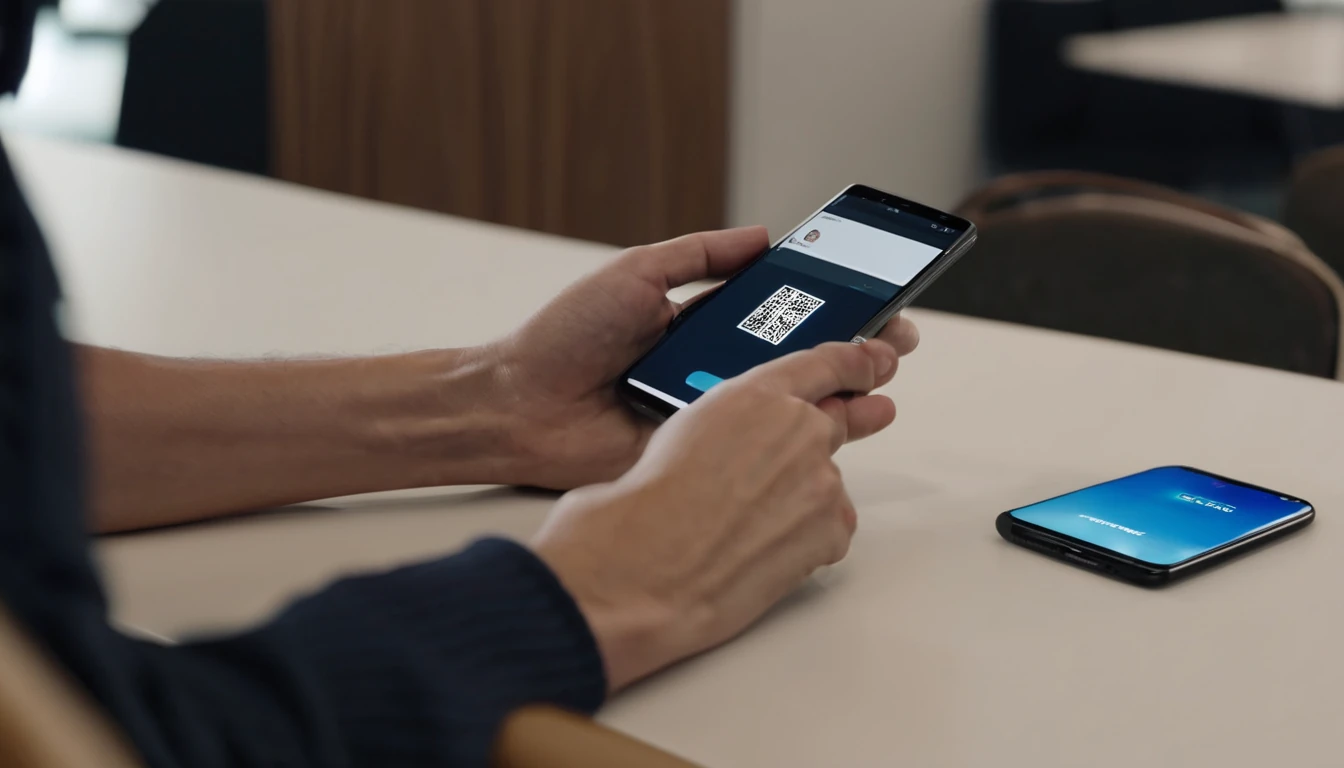
Is the Samsung Galaxy S24 or S25 eSIM Compatible?
Both the Galaxy S24 and S25 series are fully eSIM compatible — every model in both lineups (standard, Plus, and Ultra) supports at least one eSIM profile alongside a physical nano-SIM. Samsung's flagship Android devices have supported eSIM since the Galaxy S20, and by the S24/S25 generation the technology is mature, fast to activate, and reliable. According to the GSMA, eSIM adoption has grown to over 1 billion active eSIM-capable consumer devices worldwide as of 2025, with Android flagships like the Galaxy S series driving a significant share of that growth.
One important caveat: carrier-locked units purchased directly from a mobile operator in certain markets (notably some US carriers and South Korean domestic models) may have eSIM functionality restricted or disabled. If you bought your S24 or S25 unlocked — from Samsung directly, a major retailer, or a carrier that has since unlocked it — you're good to go.
Galaxy S24 vs S25 eSIM Specs at a Glance
| Feature | Galaxy S24 / S24+ / S24 Ultra | Galaxy S25 / S25+ / S25 Ultra |
|---|---|---|
| Physical SIM slots | 1 × nano-SIM | 1 × nano-SIM |
| eSIM profiles supported | Up to 1 active (multiple stored) | Up to 1 active (multiple stored) |
| Dual SIM support | Yes (nano-SIM + eSIM) | Yes (nano-SIM + eSIM) |
| 5G eSIM | Yes | Yes |
| Samsung Wallet integration | Yes | Yes (enhanced) |
Quotable stat: A 2024 Ericsson Mobility Report found that eSIM-enabled devices accounted for more than 30% of all new smartphone shipments globally — a figure expected to exceed 50% by 2026.
What Do You Need Before You Start?
Before you scan a single QR code, make sure you have three things in place. First, a compatible and unlocked Galaxy S24 or S25. Second, an eSIM plan purchased from a travel eSIM provider — you'll receive either a QR code (by email or in an app) or a set of SM-DP+ activation details. Third, a stable internet connection for the initial download, either your home Wi-Fi or a café hotspot. You do not need internet at your destination to activate an eSIM you've already installed — activation can happen the moment you land.
- Your device: Galaxy S24 or S25 (any variant), unlocked or carrier-unlocked
- Your eSIM plan: purchased in advance; QR code or manual activation code ready
- Internet connection: Wi-Fi works fine; mobile data from your existing SIM also works
- Battery: keep it above 20% — the download process shouldn't take long, but you don't want it cutting out mid-install
If you're still deciding when to activate, our eSIM activation timing guide breaks down the optimal window — generally 24–48 hours before departure is the sweet spot.
How Do You Add an eSIM to a Samsung Galaxy S24 or S25?
Adding an eSIM to your Galaxy S24 or S25 is a straightforward process that takes roughly 2–5 minutes from start to finish. The menu path is: Settings → Connections → SIM Manager → Add eSIM. From there you'll either scan a QR code or enter activation details manually. Samsung's One UI 6 (S24) and One UI 7 (S25) have made this process more streamlined than earlier Galaxy generations, with clearer on-screen prompts and faster profile download speeds.
Step 1 — Open SIM Manager
- Open the Settings app (gear icon in your app drawer or notification shade).
- Tap Connections.
- Tap SIM Manager (sometimes listed as "SIM card manager" on older One UI builds).
You'll see your current physical SIM listed here. At the bottom you'll find an "Add eSIM" or "Add mobile plan" button.
Step 2 — Choose Your Activation Method
Samsung gives you two options:
- Scan QR code — the most common method. Your eSIM provider emails you a QR code image; point your camera at it.
- Enter activation code manually — tap "Enter activation code" and type in the SM-DP+ address and activation code your provider supplies. Useful if you can't display the QR code on a second screen.
Step 3 — Download the eSIM Profile
Tap Add when prompted. Your phone will connect to the eSIM server and download the profile — this usually takes 30–90 seconds on a decent Wi-Fi connection. A progress indicator will appear. Don't close Settings or lock your screen during this step.
Step 4 — Confirm and Label the eSIM
Once downloaded, you'll be asked to:
- Give the eSIM a nickname (e.g., "Japan Trip," "Europe Data," "Simology")
- Choose whether to enable it immediately
Tap Turn on to activate it right away, or leave it off if you want to activate it when you land. You can toggle this at any time in Settings → Connections → SIM Manager.
Step 5 — Configure Dual SIM Settings
With both a physical SIM and an eSIM active, your phone will ask which SIM to use for:
- Calls (default line)
- Texts / SMS
- Mobile data (default data SIM)
For travel, the typical setup is: keep your home SIM as the default for calls/texts (so your home number stays reachable), and set the travel eSIM as the default for mobile data. More on this in the Dual SIM section below.
How to Activate an eSIM Without a QR Code (Manual Entry)
Not every provider sends a QR code — some give you a text string instead, especially for enterprise or bulk deployments. The manual activation path on Galaxy S24/S25 is just as reliable. In SIM Manager → Add eSIM, choose "Enter activation code". You'll need to type the SM-DP+ server address (a URL like 1.lpac.io or similar) followed by a $ separator and then the activation code itself. Copy-paste from your confirmation email if possible to avoid typos. The rest of the process is identical to the QR code method.
How Does Dual SIM Work on the Galaxy S24 and S25?
Dual SIM on the Galaxy S24/S25 lets you run two active lines simultaneously — your home number on the physical SIM and a travel data plan on the eSIM (or vice versa). Both lines receive calls and texts independently. You choose which SIM handles data by default, and you can switch on the fly from the notification shade's quick-settings panel. This is the single biggest practical advantage of eSIM for travelers: you never miss a call on your home number while still getting local data rates abroad.
For a deeper look at how to manage dual SIM across different devices and travel scenarios, the complete dual SIM travel setup guide covers both iPhone and Android configurations side by side.
Setting Your Default Data SIM
- Go to Settings → Connections → SIM Manager.
- Under Mobile data, select your travel eSIM.
- Toggle Allow switching to other SIM off — this prevents your phone from auto-switching back to your home SIM if the eSIM signal dips momentarily.
Making Calls and Sending Texts
By default, Galaxy devices will ask you which SIM to use each time you make a call — a small pop-up appears before dialing. You can disable this and set a permanent default under SIM Manager → Default SIM for calls. For texts, the same setting applies under Default SIM for messages.
Can You Have Two eSIMs Active at Once?
On most Galaxy S24/S25 models sold outside South Korea and a handful of other markets, you can store multiple eSIM profiles but only have one active at a time alongside a physical SIM. The S25 Ultra on some regional firmware supports dual eSIM (two active eSIM profiles simultaneously, no physical SIM required), but this varies by market. Check your specific model's spec sheet at Samsung's official device page to confirm.
How Do You Switch Between eSIM Profiles on Samsung?
Switching between stored eSIM profiles — say, from your Europe eSIM to your Asia eSIM mid-trip — takes about 30 seconds. Navigate to Settings → Connections → SIM Manager → eSIM profiles, tap the profile you want to activate, and select Activate. The previous profile is deactivated but remains stored on the device. Samsung allows you to store multiple eSIM profiles (the exact limit varies by firmware, but 10–15 is typical), so you can pre-load plans for multiple destinations before you leave home.
This is particularly useful for multi-destination trips. For example, if you're traveling through Japan and then on to Australia, you can download both eSIM profiles at home on Wi-Fi and simply switch between them as you cross borders — no hunting for a SIM shop at the airport.
What If Your eSIM Isn't Working? Troubleshooting Guide
Most eSIM activation issues on Galaxy S24/S25 fall into a handful of predictable categories. The fix is usually one of these five steps: restart the device, check that the profile is toggled on in SIM Manager, verify your plan's start date hasn't passed or hasn't begun yet, ensure mobile data is enabled for the eSIM, or re-download the profile if the initial download failed. Samsung's One UI 7 (S25) is notably more stable for eSIM than earlier builds, but edge cases still occur.
Issue: "eSIM Not Supported" Error
This almost always means one of two things:
- Your device is carrier-locked. Contact your carrier to request an unlock, or check your unlock status under Settings → General Management → Device unlock status.
- You're running an older One UI build that hasn't received the eSIM provisioning update. Go to Settings → Software Update and install any pending updates.
Issue: QR Code Won't Scan
- Make sure you're viewing the QR code on a different screen from the one you're scanning with (you can't scan a QR code displayed on the same phone).
- Increase the brightness of the screen showing the QR code.
- Try the manual entry method as a fallback.
- Check that your eSIM QR code hasn't already been used — most codes are single-use.
Issue: eSIM Downloaded but No Signal
- Confirm the eSIM is toggled on in SIM Manager.
- Check that mobile data is enabled for the eSIM (Settings → Connections → Data usage → Mobile data).
- Try toggling Airplane Mode on and off to force a network re-scan.
- If you're in a new country, make sure data roaming is enabled for the eSIM line (Settings → Connections → Mobile networks → Data roaming).
Issue: Profile Download Failed Mid-Way
- Check your internet connection — switch from Wi-Fi to mobile data or vice versa.
- Delete the partially downloaded profile in SIM Manager and start fresh.
- Contact your eSIM provider for a new QR code if the original has been invalidated.
For Galaxy Watch users adding eSIM to a wearable rather than the phone itself, the Samsung Galaxy Watch eSIM setup guide covers LTE model-specific steps and common watch-specific errors.
Is the Galaxy S24/S25 eSIM Setup Different From iPhone?
The core process — scan QR code, download profile, configure dual SIM — is the same on both platforms, but the menu paths and terminology differ. Samsung uses "SIM Manager" under Connections; Apple uses "Cellular" under Settings. One practical difference: Samsung's One UI lets you label and color-code eSIM profiles more granularly, which is handy when you're juggling multiple travel plans. iPhone's eSIM setup tends to be slightly faster on initial download due to tighter hardware-software integration, but both are reliable in practice.
For a side-by-side comparison of the full setup experience across both ecosystems, the iPhone vs Android eSIM setup guide is worth a read before you travel.
| Step | Galaxy S24/S25 (One UI) | iPhone 15/16 (iOS) |
|---|---|---|
| Menu path | Settings → Connections → SIM Manager | Settings → Cellular → Add eSIM |
| QR scan | Built-in camera via SIM Manager | Built-in camera via Cellular settings |
| Manual entry | Yes (SM-DP+ address + code) | Yes (activation code) |
| Profile labeling | Custom name + color | Custom name |
| Profiles stored | 10–15 (varies by firmware) | ~5–8 (varies by iOS version) |
| Dual eSIM (no physical SIM) | Select models/regions | iPhone 14+ (US models) |
| Activation without Wi-Fi | Needs internet for download | Needs internet for download |
How Much Does a Travel eSIM Cost for the Galaxy S24/S25?
An eSIM plan for international travel typically ranges from $3 to $30 depending on the destination, data allowance, and validity period — significantly cheaper than carrier roaming rates, which can run $10–$15 per day or more. According to the European Commission's roaming regulations, EU-regulated retail roaming data is capped, but outside the EU travelers face unregulated rates that can add up shockingly fast. A travel eSIM sidesteps that entirely.
Here's a rough benchmark for popular travel corridors in 2026:
| Destination | Typical eSIM plan (1GB/7 days) | Typical eSIM plan (5GB/30 days) |
|---|---|---|
| Europe (regional) | ~$5–$8 | ~$18–$25 |
| Japan | ~$4–$7 | ~$15–$22 |
| Australia | ~$5–$9 | ~$20–$28 |
| USA | ~$4–$7 | ~$15–$20 |
| Southeast Asia (regional) | ~$5–$10 | ~$18–$26 |
Prices vary by provider and plan tier. The Galaxy S24/S25's 5G capability means you can take full advantage of 5G eSIM plans where available — check your specific destination's network compatibility before purchasing.
Simology offers eSIM plans for 190+ countries. If you're heading to Southeast Asia or planning a Europe trip, regional plans often work out cheaper than buying per-country.
Tips for Getting the Most Out of eSIM on Your Galaxy S24/S25
These practical tips come from real traveler experience and can save you time, money, and frustration on the road.
Pre-Download Before You Leave Home
Always download your eSIM profile before you leave — on your home Wi-Fi, ideally 24–48 hours before departure. This means you'll have connectivity the moment you land, even before you find an airport Wi-Fi network. If the download fails en route, you have time to troubleshoot without the stress of standing in a foreign arrivals hall.
Use Samsung DeX or Second Screen for QR Scanning
If you only have one device and need to scan a QR code that's on your phone, display the QR code on a laptop or tablet screen and scan it with your Galaxy camera. Alternatively, print the QR code from your confirmation email before you travel.
Keep Your Home SIM in the Phone
Resist the urge to remove your physical SIM when you travel. With Dual SIM active, your home number remains reachable for calls and texts (useful for two-factor authentication codes), while the eSIM handles data. You only pay for data on the travel eSIM — incoming calls on your home number typically don't incur roaming charges on most plans, though check with your carrier.
Monitor Data Usage Per SIM
Samsung's One UI lets you track data usage per SIM independently. Go to Settings → Connections → Data usage and toggle between SIM lines to see exactly how much data each plan has consumed. Set a data usage warning for your travel eSIM to avoid accidentally running over your plan limit.
Delete Old Profiles When Done
Once a trip is over, delete the used eSIM profile to keep your SIM Manager tidy. Go to SIM Manager → eSIM profiles, tap the old profile, and select Delete. This frees up a profile slot for your next trip.
FAQ
Does the Samsung Galaxy S24 support eSIM?
Yes, every model in the Galaxy S24 lineup — S24, S24+, and S24 Ultra — supports eSIM. You can run a physical nano-SIM and an eSIM simultaneously in Dual SIM mode. The only exception is carrier-locked units from specific operators that have disabled eSIM functionality; if you're unsure, check under Settings → General Management → Device unlock status.
Does the Samsung Galaxy S25 support eSIM?
Yes, the entire Galaxy S25 series (S25, S25+, S25 Ultra) supports eSIM with One UI 7. The setup process is the same as the S24 — Settings → Connections → SIM Manager → Add eSIM. The S25 Ultra on select regional firmware also supports dual active eSIM profiles without a physical SIM card.
How many eSIM profiles can I store on a Galaxy S24 or S25?
Most Galaxy S24/S25 units can store between 10 and 15 eSIM profiles, though only one (or two on dual-eSIM-capable models) can be active at a time. You can pre-load profiles for multiple destinations before you travel and switch between them in SIM Manager in under 30 seconds.
Can I use an eSIM and a physical SIM at the same time on Galaxy S24/S25?
Yes. This is called Dual SIM mode. Your physical nano-SIM and your eSIM operate as two independent lines. You can assign each SIM a different role — for example, your home SIM for calls and your travel eSIM for mobile data — and both lines receive calls and texts simultaneously.
Why is my eSIM not working on my Samsung Galaxy?
The most common causes are: the device is carrier-locked, the eSIM profile is downloaded but not toggled on in SIM Manager, mobile data or data roaming isn't enabled for the eSIM line, or the QR code has already been used. Try toggling the eSIM on in Settings → Connections → SIM Manager, enable data roaming, and restart the device. If problems persist, contact your eSIM provider for a fresh activation code.
Do I need Wi-Fi to activate an eSIM on a Galaxy S24/S25?
You need an internet connection to download the eSIM profile — Wi-Fi or existing mobile data both work. Once the profile is downloaded and stored on the device, you can activate or deactivate it without internet. This means you can download your travel eSIM at home and have it ready to switch on the moment you land.
Will my Galaxy S24/S25 eSIM work in every country?
eSIM support on your device is global, but the coverage and network access of your specific eSIM plan depends on the provider and the plan you purchase. Most travel eSIM plans roam across the major local networks in each country. Always check the destination's coverage details before purchasing — Simology lists supported networks for every destination on its plan pages.
Can I delete and reinstall an eSIM on my Galaxy S24/S25?
You can delete an eSIM profile from your device, but most providers issue single-use QR codes, meaning you cannot reinstall a deleted profile by scanning the same code again. Before deleting, confirm with your provider whether a re-download is possible. Some providers allow re-installation via their app or by issuing a new activation code.