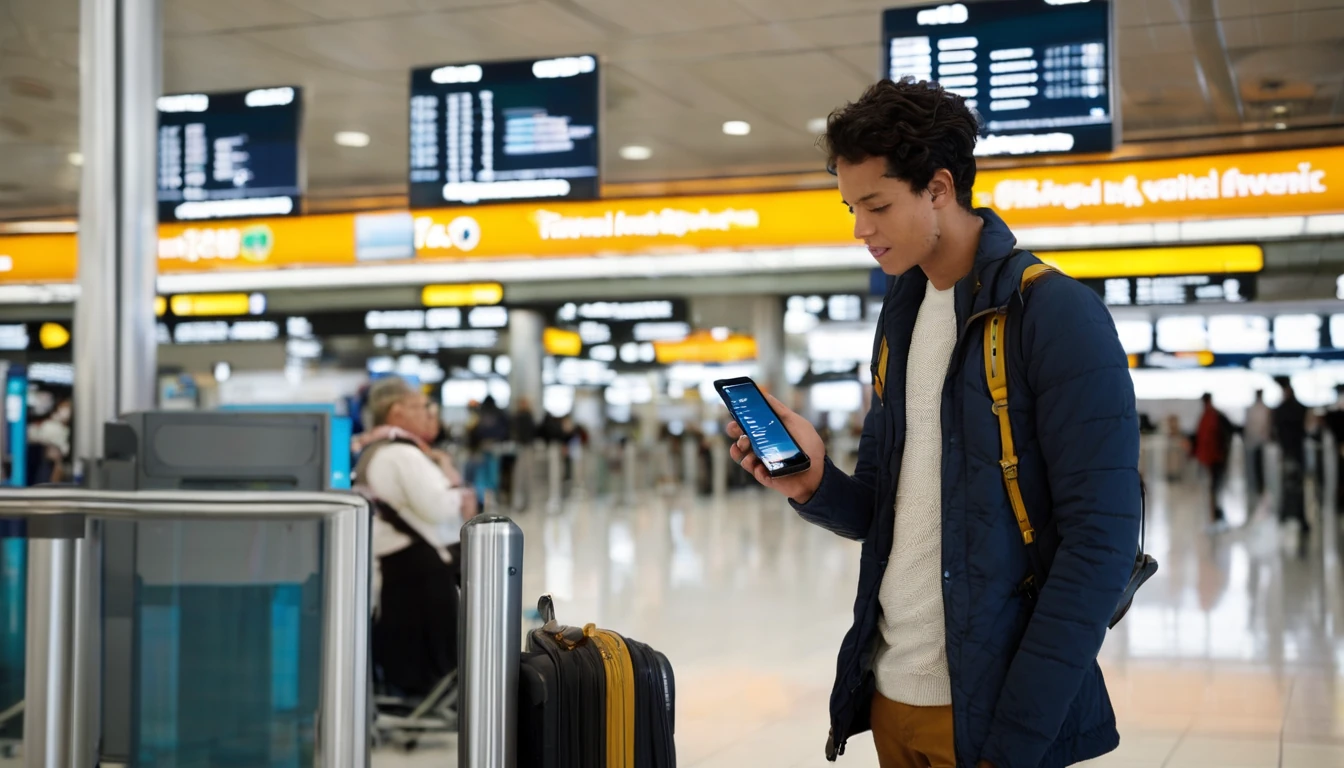
What Is Dual-SIM Data Steering — and Why Does It Matter?
Dual-SIM data steering is the practice of assigning mobile data to one SIM (or eSIM) while keeping your primary number active on a second SIM for voice calls and SMS. The result: your home carrier handles incoming calls and messages, while a local or travel eSIM delivers fast, affordable data. For international travelers, this split is the difference between a $400 roaming bill and a $15 data plan.
According to the GSMA's 2025 Mobile Economy report, eSIM adoption is accelerating rapidly, with hundreds of millions of eSIM-capable devices now in use globally. Meanwhile, the European Commission's roaming regulation caps wholesale data rates at €2 per GB within the EU — yet retail roaming plans from major carriers often charge multiples of that when you travel outside regulated zones. Steering your data to a local eSIM sidesteps that markup entirely.
Quotable stat: A 2025 analysis by the GSMA found that eSIM-enabled devices accounted for over 30% of all new smartphone shipments globally — a figure that will only grow as Apple, Google, and Samsung continue phasing out physical SIM trays.
Whether you're heading to Japan for two weeks or spending a semester in Europe, understanding how data steering works on your specific device is the single most valuable piece of phone knowledge you can have before you board.
How Does Dual-SIM Work on iPhone?
On iPhone, dual-SIM means one physical nano-SIM plus one eSIM — or, on iPhone 15 and later (US models), two eSIMs with no physical SIM tray at all. Apple calls the feature "Dual SIM with eSIM," and it's been available since iPhone XS/XR (2018). You can store up to 8 eSIMs on a single iPhone and have two active simultaneously.
Setting Your Default Data Line on iOS
- Open Settings → Cellular (or Mobile Data in some regions).
- Tap Default Voice Line — keep this set to your home SIM so callers reach your regular number.
- Tap Default for Data — switch this to your travel eSIM. This routes all app data, browsing, and background sync through the cheaper line.
- Toggle on Allow Cellular Data Switching if you want iOS to fall back to your home SIM when the travel eSIM has no signal. Turn this OFF if you want to avoid any accidental home-carrier data charges.
What "Allow Cellular Data Switching" Actually Does
This setting is one of the most misunderstood toggles on iPhone. When enabled, iOS will automatically use your secondary SIM's data if the primary data SIM loses signal. That sounds helpful, but it means your home SIM can silently start consuming data — at roaming rates — the moment your travel eSIM drops to zero bars. Unless you're in a patchy coverage area where fallback is genuinely needed, keep it off and manually switch lines if required.
iMessage, FaceTime, and the Two-Number Problem
When you add a travel eSIM, iOS may prompt you to enable iMessage and FaceTime on the new number. You almost certainly don't want this — it splits your message threads and confuses contacts. Keep iMessage and FaceTime registered to your home number only. For a full walkthrough of managing these settings, see our guide on Dual SIM on iPhone with eSIM: Default Line, Data, iMessage/FaceTime.
iOS 17/18 Improvements Worth Knowing (2025–2026)
- eSIM Quick Transfer: iOS 17 introduced the ability to transfer an eSIM between iPhones over Bluetooth — no carrier app needed for supported plans.
- Per-App Data Assignment: iOS 18 added experimental per-app SIM assignment in beta, letting you route specific apps (e.g., a work VPN) through one SIM while everything else uses the other. This feature is rolling out to stable builds through 2026.
- Improved eSIM Storage: iPhone 16 series can store up to 8 eSIMs, with two active at once.
How Does Dual-SIM Data Steering Work on Android?
Android's dual-SIM implementation varies more widely than iOS because it depends on both the Android version and the device manufacturer's software skin. That said, the core logic is consistent across Samsung One UI, Google Pixel UI, and most other major Android flavors as of Android 12 and later.
The Universal Android Steps
- Open Settings → Connections (Samsung) or Settings → Network & Internet → SIMs (Pixel/stock Android).
- Find the Mobile Data or Preferred SIM for Data option.
- Select your travel eSIM as the active data SIM.
- Leave your primary SIM assigned to Calls and SMS/MMS.
On most Android devices, you can also toggle Adaptive connectivity or Smart SIM switching — a feature that automatically switches the data SIM based on signal strength. Like iOS's Allow Cellular Data Switching, this can result in unexpected home-carrier data usage. Disable it unless you specifically need the fallback.
Samsung Galaxy Dual-SIM Specifics
Samsung Galaxy devices (S24/S25 series, Z Fold 6/7, A-series) support nano-SIM + eSIM or dual eSIM on select models. In One UI 6/7:
- Go to Settings → Connections → SIM Manager.
- Under Preferred SIM, set Data to your travel eSIM.
- Under More SIM Settings, disable Data Switching to prevent silent fallback.
Samsung's SIM Manager also shows data usage per SIM, which is useful for tracking how much of your travel plan you've consumed.
Google Pixel Dual-SIM Specifics
Pixel 8 and Pixel 9 series support dual eSIM (no physical SIM slot on some models). In Android 15:
- Settings → Network & Internet → SIMs shows both active SIMs.
- Tap the SIM you want for data and toggle Use SIM on, then confirm it as the preferred data SIM.
- Pixel's Adaptive connectivity setting (Settings → Network & Internet → Adaptive connectivity) can be left on for Wi-Fi/data switching but should be reviewed to ensure it doesn't trigger home-SIM data roaming.
iOS vs. Android Dual-SIM Data Steering: Side-by-Side Comparison
Understanding the differences at a glance helps you configure your specific device correctly before you travel.
| Feature | iPhone (iOS 17/18) | Samsung One UI 6/7 | Google Pixel (Android 15) |
|---|---|---|---|
| Physical SIM + eSIM | Yes (most models) | Yes | Varies (some Pixel 9 models eSIM-only) |
| Dual eSIM (no physical SIM) | Yes (iPhone 15+ US) | Select models | Yes (Pixel 9 series) |
| Max stored eSIMs | 8 | 5–10 (varies) | 5+ |
| Max active simultaneously | 2 | 2 | 2 |
| Data fallback toggle | Allow Cellular Data Switching | Data Switching (SIM Manager) | Adaptive Connectivity |
| Per-app SIM routing | iOS 18 beta/rolling | Not available | Not available |
| eSIM Quick Transfer | Yes (iOS 17+) | Via Samsung app | Not available |
| Data usage per SIM | Yes | Yes | Yes |
What Are the Most Common Dual-SIM Data Steering Mistakes?
Most travelers who end up with surprise roaming charges made one of a handful of avoidable configuration errors. Knowing these in advance saves real money.
Mistake 1: Leaving Data Switching Enabled
As covered above, both iOS and Android offer automatic fallback to the secondary SIM when the primary data SIM loses signal. If your home SIM is the fallback and you're abroad, that fallback is billed at international roaming rates. Always disable this toggle when traveling.
Mistake 2: Not Labeling Your eSIMs
If you travel frequently, you may accumulate multiple stored eSIMs. Both iOS and Android let you rename each SIM profile. Label them clearly: "Home - [Carrier]", "Japan Trip June 2026", "Europe Summer 2026". This prevents you from accidentally activating the wrong plan — a mistake that's easy to make at 2 a.m. after a long flight.
Mistake 3: Forgetting Wi-Fi Calling Interactions
Many home carriers offer Wi-Fi calling, which routes voice calls over the internet rather than the cellular network. When you're abroad with a travel eSIM handling data, Wi-Fi calling on your home SIM still works — but only over Wi-Fi or through the data connection of your home SIM. If your home SIM is set to data-off, Wi-Fi calling will use your travel eSIM's data connection instead. This is usually fine, but worth understanding. For more on keeping your messaging apps working seamlessly, see Keep WhatsApp & iMessage While Using a Data eSIM Abroad.
Mistake 4: Activating the eSIM at the Airport Without Pre-Downloading It
eSIM profiles must be downloaded before you can activate them. If you wait until you land in a country with no Wi-Fi access, you're stuck. Always download your eSIM profile at home or at the departure airport while on Wi-Fi. The eSIM activates automatically once you arrive and the local network is detected.
Mistake 5: Ignoring Hotspot/Tethering Line Assignment
When you create a personal hotspot, it uses the data SIM. Make sure your travel eSIM is set as the data SIM before you enable hotspot — otherwise you'll tether through your home SIM at roaming rates. This catches out even experienced travelers.
How Do You Set Up a Travel eSIM for Data Steering?
Setting up a travel eSIM for data steering takes under five minutes if you follow the right sequence. The key rule: configure before you fly, not after.
Step 1: Check Device Compatibility
Confirm your device supports eSIM. Most flagship smartphones released after 2020 do, including iPhone XS and later, Samsung Galaxy S20 and later, and Google Pixel 3 and later. Check Apple's eSIM compatibility page or your Android manufacturer's spec sheet if you're unsure.
Step 2: Purchase and Download Your eSIM
Buy a travel eSIM plan from a provider like Simology. You'll receive a QR code by email or within an app. Scan it via:
- iOS: Settings → Cellular → Add eSIM → Use QR Code
- Android: Settings → Connections/Network → SIMs → Add eSIM → Scan QR Code
Download the profile while connected to Wi-Fi. The profile installs in under 30 seconds.
Step 3: Assign Data to the Travel eSIM
Follow the iOS or Android steps outlined in the sections above. Set your travel eSIM as the default data line and disable data switching/fallback.
Step 4: Set the Travel eSIM to "Data Only" (Recommended)
Most travel eSIMs are data-only plans — they don't have a phone number for voice calls. In your SIM settings, confirm the travel eSIM is not set as the default for calls or SMS. This ensures all voice calls still route through your home SIM.
Step 5: Test Before You Board
With both SIMs active, open a browser and load a webpage. Check Settings → Cellular → Cellular Data Usage to confirm data is being consumed on the travel eSIM, not the home SIM. Do this while still on home soil — it's much easier to troubleshoot at home than at 35,000 feet.
Does Dual-SIM Data Steering Work the Same Way for Regional eSIM Plans?
Regional eSIM plans — which cover multiple countries on a single plan — work identically from a data-steering perspective. The eSIM profile connects to whichever local network offers the best signal in each country, and your device still sees it as a single "travel eSIM" data line.
This makes regional plans especially powerful for multi-country trips. If you're traveling across Southeast Asia or touring Western Europe, a single regional eSIM handles data across all destinations while your home SIM stays active for calls throughout. You don't need to swap eSIMs at each border — the plan's coverage handles it automatically.
The one thing to check: some regional plans have different data speeds or fair-use caps per country within the region. Read the plan details before purchasing so you know which countries have full-speed data and which may be throttled after a daily threshold.
What About Battery Life and Signal Performance with Two Active SIMs?
Running two SIMs simultaneously does consume slightly more battery than a single SIM — both radios are active and periodically searching for network towers. In practice, the difference is modest: independent tests by Android Authority and GSMArena have shown dual-SIM mode typically adds 5–10% battery drain compared to single-SIM operation under similar usage conditions.
Tips to Minimize Dual-SIM Battery Impact
- Turn off the home SIM's data (not just deprioritize it — actually disable cellular data on that line). This reduces the home SIM radio's workload significantly.
- Enable Airplane Mode, then re-enable only your travel eSIM when you first land, if you want the cleanest possible setup. Then manually turn on your home SIM for calls.
- Low Power Mode on iPhone and Battery Saver on Android reduce background SIM activity, extending battery life on long travel days.
- If you're in a country with weak signal (e.g., rural areas), the constant searching for towers drains battery faster. Consider manually selecting a network in Settings → Carrier to lock onto the strongest available network rather than letting the phone search continuously.
How Does Data Steering Interact with VoLTE and 5G?
Voice over LTE (VoLTE) and 5G are network features that interact with dual-SIM in ways that aren't always obvious.
VoLTE and Dual-SIM
Most modern smartphones support VoLTE on both SIMs simultaneously — but some older devices only support VoLTE on one SIM at a time. If VoLTE is active on your home SIM (for HD voice calls), and your device only supports single-SIM VoLTE, the second SIM (your travel eSIM) may be forced to use 3G for data in some regions. This is increasingly rare in 2026 as 3G networks shut down globally, but worth checking if you're using a device from 2019–2021.
5G and Dual-SIM
On 5G-capable devices, 5G is typically available on both SIMs, but some devices restrict 5G to the "primary" SIM slot. On iPhone, 5G is available on whichever SIM is set as the data SIM. On Samsung Galaxy devices, 5G may be limited to SIM 1 slot on certain models — check your device's spec sheet if 5G data speed is critical to your trip. For travelers heading to destinations with strong 5G rollout like South Korea or Japan, this distinction matters.
Practical Data Steering Scenarios: Real-World Examples
Theory is useful; concrete scenarios are better. Here are three common travel situations and the optimal dual-SIM configuration for each.
Scenario 1: Business Traveler in Europe (1 Week)
Setup: iPhone 15 Pro, home SIM (US carrier), Simology Europe eSIM. Goal: Keep US number reachable, use local EU data rates for Maps/email/video calls. Config: Default Voice = Home SIM. Default Data = Europe eSIM. Allow Cellular Data Switching = OFF. iMessage/FaceTime = Home number only. Result: Colleagues call the US number normally. Data costs ~$15–25 for the week instead of $100+ in roaming add-ons. For a full cost comparison, see eSIM vs International Roaming Plans: Real Cost Breakdown for 2026.
Scenario 2: Family Vacation in Australia (2 Weeks)
Setup: Samsung Galaxy S25, home SIM (UK carrier), Simology Australia eSIM. Goal: Keep UK number for family back home, affordable local data for the whole trip. Config: SIM Manager → Data = Australia eSIM. Data Switching = OFF. Calls = Home SIM. Result: Family can call the UK number. Data plan covers Australia travel at a fraction of roaming cost. For families managing multiple devices, see Family Travel eSIM Plans: Managing Multiple Devices and Kids' Phones Abroad.
Scenario 3: Student on Semester Abroad in Japan
Setup: Google Pixel 9, home SIM (Canadian carrier), Simology Japan eSIM. Goal: Maintain Canadian number for banking 2FA and family calls, cheap data for 4 months. Config: SIMs → Data = Japan eSIM. Adaptive Connectivity = OFF. Calls = Home SIM (data disabled on home SIM to avoid any roaming). Result: Banking SMS codes arrive on the Canadian number. Data costs are dramatically lower than a semester-long roaming plan. For budget-focused options, see Student Saver Plans: Semester-Long eSIM Options with Budget Tips.
FAQ
How do I stop my home SIM from using data abroad when I have a travel eSIM?
On iPhone, go to Settings → Cellular, tap your home SIM, and turn off "Turn On This Line" for data — or simply set your travel eSIM as Default for Data and disable "Allow Cellular Data Switching." On Android, go to SIM Manager or Network settings and set your travel eSIM as the preferred data SIM, then disable Data Switching. This ensures your home carrier's data is never used abroad.
Can I receive calls on my home number while using a travel eSIM for data?
Yes — that's exactly the point of dual-SIM data steering. Your home SIM stays active for voice calls and SMS while the travel eSIM handles all mobile data. You don't need to do anything special; just make sure your home SIM is set as the default for calls and your travel eSIM is set as default for data.
Do I need to turn off my home SIM when I activate a travel eSIM?
No. Both SIMs can be active simultaneously. You only need to configure which SIM handles data (the travel eSIM) and which handles calls (the home SIM). Turning off your home SIM entirely would mean you miss calls and texts on your regular number.
Will my travel eSIM work as a hotspot for tethering?
Yes, most travel eSIM data plans support hotspot/tethering, though some plans restrict it or count hotspot data separately. Before your trip, confirm your plan allows tethering. When you enable hotspot, your phone automatically uses the active data SIM — make sure that's your travel eSIM and not your home SIM.
What happens if my travel eSIM runs out of data mid-trip?
You can purchase a top-up or a new plan remotely via the provider's app or website — no physical SIM swap needed. In the meantime, your phone will still function for calls and SMS on your home SIM. If you've enabled data switching/fallback, your phone may start using home-carrier data automatically, so keep that toggle off until you've topped up.
Can I use dual-SIM data steering on an older iPhone like the iPhone X?
The iPhone X does not support eSIM — it has only a single physical nano-SIM slot. Dual-SIM eSIM support began with iPhone XS, XR, and XS Max (2018). If you have an iPhone X or earlier, you'll need to use a physical local SIM and swap it in manually, or rely on a Wi-Fi-only approach with a pocket router.
Does using two SIMs simultaneously drain battery significantly?
The battery impact is real but modest — typically 5–10% additional drain compared to single-SIM use, based on independent device testing. You can minimize this by disabling cellular data on your home SIM (leaving it active only for calls) and using Low Power Mode on long travel days.
Is dual-SIM data steering different for a regional eSIM vs. a single-country eSIM?
From a configuration standpoint, no — you set up data steering the same way regardless of whether the eSIM covers one country or twenty. The difference is that a regional eSIM automatically connects to partner networks as you cross borders, so you don't need to swap or reconfigure anything mid-trip. Just make sure the travel eSIM remains your default data line throughout your journey.
The Bottom Line: Configure Once, Save Every Trip
Dual-SIM data steering is one of the highest-leverage travel hacks available to modern smartphone users. Spend five minutes configuring your device before departure, and you'll land with instant local data, keep your home number reachable, and avoid the kind of roaming bills that used to ruin the first day of a trip.
The key takeaways:
- Set your travel eSIM as Default for Data — on both iOS and Android, this is the one toggle that matters most.
- Disable data fallback/switching — Allow Cellular Data Switching (iOS) and Data Switching (Samsung) are the most common sources of accidental roaming charges.
- Download your eSIM profile before you fly — you need Wi-Fi to install it, and airport Wi-Fi is unreliable.
- Label your eSIMs clearly — especially if you travel frequently and accumulate multiple stored profiles.
- Test on home soil — verify data is flowing through the travel eSIM before you board.
Whether you're a weekly business traveler or planning your first international trip, the combination of a travel eSIM and proper data steering gives you the connectivity of a local without the hassle of hunting down a SIM shop on arrival. Set it up right, and staying connected abroad becomes the least stressful part of your journey.