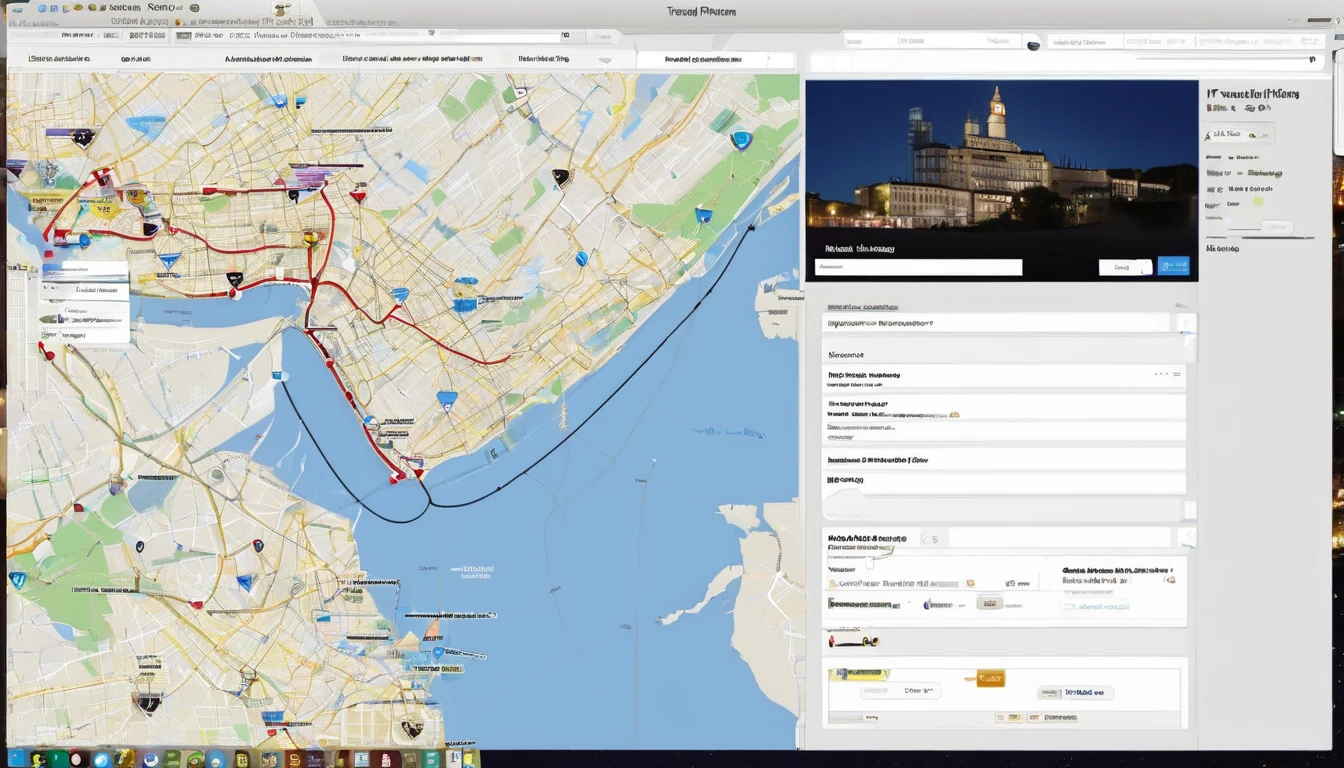
Why Most Travelers Are Planning Itineraries the Hard Way
You've got restaurant recommendations in an Instagram DM, hotel pins saved in your browser, and a Google Doc your travel companion sent at 11 p.m. Sound familiar? This fragmented approach to trip planning is how most people end up standing on a street corner, squinting at their phone, trying to remember which neighborhood that rooftop bar was in.
Here's the thing: both Google Maps and Apple Maps have built-in tools specifically designed to solve this problem — and most travelers have no idea they exist. Custom lists, shareable pins, collaborative itineraries, and offline map downloads can transform your phone into a genuinely powerful travel planning tool before you ever leave home.
According to Google's own data, over 1 billion people use Google Maps every month, making it the most widely used navigation app on the planet. And with Apple Maps now covering 100+ countries with detailed place data, the competition has never been stronger.
The real skill isn't choosing one app over the other — it's knowing how to use each one's planning features to their fullest. This guide walks you through exactly that.
How Do You Build a Custom Map in Google Maps?
Google Maps' custom list and saved places features are the closest thing to a free, shareable travel itinerary tool built right into an app you already have. You can organize pins by category, add notes to each location, and share the whole thing with anyone — no account required on their end.
Step 1: Create a New List
- Open Google Maps on your phone and tap Saved (the bookmark icon at the bottom).
- Tap the + icon to create a new list.
- Name it something useful — "Tokyo Food Trip," "Paris Day 1," or "Barcelona Beaches."
- Choose whether to make it private or shareable.
You can create as many lists as you want, and each one can hold unlimited places. Many experienced travelers create separate lists for each day of a trip or each category (restaurants, museums, accommodation).
Step 2: Add Places to Your List
Search for any place in Google Maps, tap on it to open its detail card, then tap Save. You'll be prompted to choose which list it goes into. You can also add a note — useful for reminders like "best table is by the window" or "book ahead on weekends."
From the desktop version at maps.google.com, you can search, save, and organize places even faster. Many travelers find it easier to do the bulk of their research on desktop, then access everything on mobile.
Step 3: Share Your List
This is where Google Maps becomes genuinely collaborative. Open any saved list, tap the three-dot menu, and select Share list. You'll get a link that anyone can view — even without a Google account. If they do have a Google account, they can follow your list and it'll appear in their own Saved section.
For group trips, this is invaluable. Whether you're planning a family vacation or coordinating with friends across time zones, one shared Google Maps list eliminates the "wait, which hotel did you send me?" back-and-forth entirely.
How Do You Build Itinerary Maps in Apple Maps?
Apple Maps has quietly become a serious contender for travel planning, especially for iPhone and Mac users who want everything to stay within the Apple ecosystem. Its Guides feature, Favorites, and Collections work together to create a cohesive planning experience — though it works differently from Google's approach.
Using Guides
Apple Maps' built-in Guides are curated collections of places created by trusted publishers like Lonely Planet, Time Out, and AllTrails. You can't create your own public Guide, but you can save individual places from any Guide into your own Collections.
To browse Guides: open Apple Maps, scroll down on the search screen, and you'll see a "Guides" section. Tap any guide to explore its recommended spots, then tap the + button on any place to save it to a Collection.
Creating Collections
Collections are Apple Maps' equivalent of Google's saved lists. Here's how to create one:
- Search for a place in Apple Maps and tap on it.
- Tap Add to Collection (or the bookmark icon).
- Create a new Collection with a name like "Lisbon Itinerary."
- Add notes to individual places if needed.
As of iOS 17 and later, you can share Collections with other Apple users via a link — though the recipient needs an Apple device to interact with it fully. This is the main limitation compared to Google Maps' more universally accessible sharing.
Favorites
For places you'll return to repeatedly — your hotel, the airport, a friend's address — the Favorites feature gives you one-tap access from the Apple Maps home screen. Add any place to Favorites by tapping the + icon on its detail card.
Google Maps vs. Apple Maps for Itinerary Planning: Which Is Better?
For most travelers, Google Maps wins on raw functionality and cross-platform accessibility, but Apple Maps is the smarter choice if you're deep in the Apple ecosystem and value seamless device integration. Neither app is objectively "better" — the right one depends on your devices and how you travel.
| Feature | Google Maps | Apple Maps |
|---|---|---|
| Custom lists / collections | ✅ Unlimited lists | ✅ Collections (iOS 16+) |
| Shareable link (non-users) | ✅ Anyone can view | ⚠️ Best with Apple devices |
| Collaborative editing | ⚠️ View only for non-editors | ❌ Not available |
| Offline maps | ✅ Download by region | ✅ Download by region (iOS 17+) |
| Notes on saved places | ✅ Yes | ✅ Yes (limited) |
| Desktop planning | ✅ Full-featured web app | ⚠️ Mac only |
| Curated travel guides | ⚠️ Limited | ✅ Extensive (Lonely Planet, etc.) |
| Android support | ✅ Full | ❌ iOS/macOS only |
| Integration with other apps | ✅ Wide (TripAdvisor, Yelp, etc.) | ✅ Deep Apple ecosystem |
| Transit directions | ✅ Excellent globally | ✅ Good in major cities |
Bottom line: If you're traveling with a mixed Android/iPhone group, Google Maps is the clear winner for sharing. If everyone's on Apple devices, Apple Maps offers a cleaner, more integrated experience.
How Do You Download Maps for Offline Use?
Offline maps are one of the most underused features in both apps — and one of the most valuable when you're navigating a new city without reliable data. Both Google Maps and Apple Maps support offline downloads, though the process and limitations differ.
Google Maps Offline Download
- Search for a city or region.
- Tap the place name at the bottom to open its detail panel.
- Tap the three-dot menu and select Download offline map.
- Adjust the area you want to download, then tap Download.
Downloaded maps include roads, businesses, and basic navigation — but not live traffic, transit directions, or Street View. Google Maps offline maps expire after 30 days and need to be re-downloaded. You can store multiple regions simultaneously, which is perfect for multi-country trips like a Southeast Asia backpacking route through Thailand, Laos, and Vietnam.
Apple Maps Offline Download (iOS 17+)
Apple added offline maps in iOS 17, finally closing the gap with Google:
- Search for a city.
- Tap its detail card.
- Scroll down and tap Download.
Apple's offline maps include turn-by-turn navigation, points of interest, and even transit information in supported cities — a slight edge over Google in some markets. The download size is comparable to Google's.
Pro tip: Download offline maps before you leave home on your home Wi-Fi. Don't rely on airport or hotel Wi-Fi, which can be slow or throttled. And remember — offline maps are a backup, not a replacement for live data. For real-time updates, traffic, and live transit info, you'll want an active data connection.
What's the Best Way to Share an Itinerary with Travel Companions?
The best approach is to build your itinerary in Google Maps (for maximum compatibility), share the list link with your group, and ask everyone to save it to their own accounts. For Apple-only groups, a shared Collection link works just as well. Either way, the key is agreeing on one platform before the trip starts.
Google Maps: Sharing a Saved List
- Go to Saved → open your list.
- Tap the three-dot menu → Share list.
- Copy the link and send it via WhatsApp, iMessage, email, or however your group communicates.
Anyone with the link can view all your saved pins on a map. If they have a Google account and follow the list, they'll see any updates you make in real time.
Apple Maps: Sharing a Collection
- Open Collections in Apple Maps.
- Tap the Collection you want to share.
- Tap the Share icon → Share Collection Link.
Recipients on Apple devices can save the Collection to their own Maps app. Non-Apple users will see a web preview but won't get the full interactive experience.
Third-Party Option: Google My Maps
For more complex, multi-day itineraries with custom routes, color-coded pins, and embedded notes, Google My Maps (available at mymaps.google.com) is a free tool that goes well beyond what the standard Maps app offers. You can:
- Create multiple layers (one per day)
- Draw custom routes
- Add photos and descriptions to each pin
- Embed the map on a website or blog
- Collaborate with others in real time (like Google Docs)
My Maps is particularly useful for detailed trip planning — think a Mediterranean cruise with multiple port days where you want a visual overview of each stop.
How Do You Use Google Maps Lists to Plan Day-by-Day Itineraries?
The most effective method is to create one list per day — "Day 1: Arrival + Old Town," "Day 2: Museums + Dinner District" — and save all relevant places into each list. This gives you a clean, scannable map for each day without the clutter of every pin from your entire trip.
A Practical Day-by-Day Framework
Before you leave:
- Create a master research list (everything you might want to do)
- Create separate Day 1, Day 2, Day 3 lists
- Move pins from master list into day lists as your itinerary takes shape
- Add notes to each pin (hours, booking requirements, budget)
On the ground:
- Open the relevant day's list each morning
- Use the map view to spot geographic clusters and plan the most logical route
- Tap any pin to get directions, check hours, or read reviews
After the trip:
- Keep your lists — they become a personal travel archive and make it easy to recommend places to friends
This method is especially effective for city trips where you're moving around a lot. For a romantic weekend in Europe, for example, having a curated Day 1 and Day 2 list means you spend less time deciding and more time actually enjoying the trip.
Does Google Maps Work Without Internet Abroad?
Google Maps works offline for basic navigation once you've downloaded the relevant area, but live features — traffic, transit, business hours updates, and search — require an internet connection. This is why having reliable mobile data abroad is so important for getting the most out of your itinerary planning tools.
The Data Problem When Traveling Internationally
Here's where many travelers get caught out: they've done all the right prep work — downloaded offline maps, built beautiful shared lists — but then they're standing in a foreign city with no data, unable to search for a new restaurant, check if a museum is open, or pull up the live transit map.
International roaming from your home carrier can be eye-wateringly expensive. According to the GSMA's 2025 Mobile Economy report, the average international roaming surcharge is still 5-10x the cost of a local data plan in the same country — a gap that eSIM technology is helping to close.
A travel eSIM lets you activate a local data plan before you land — no SIM swapping, no hunting for a phone shop at the airport. You keep your home number active for calls and texts, while the eSIM handles your data at local rates. For destinations across Europe, Asia, or anywhere else on your itinerary, having data from the moment you land means your carefully planned Google Maps lists actually work the way they're supposed to.
Advanced Tips for Power Users
These features go beyond the basics and are where experienced travelers really get value from their mapping tools.
Use Google Maps Timeline for Post-Trip Journaling
Google Maps Timeline (in your account settings) automatically records everywhere you've been — every restaurant, every transit route, every neighborhood. It's a surprisingly detailed travel diary. You can export your timeline data and even use it to fill in a travel journal after the fact.
Note: Timeline requires Location History to be enabled. Review your privacy settings before enabling this feature.
Star Ratings and Reviews Help Future Travelers
After a trip, take 10 minutes to leave reviews on the places you visited. Not only does this help other travelers, but Google Maps weighs your reviews more heavily when you've actually visited a place (verified via Location History), making your contributions more valuable to the community.
Use "Explore" to Discover Hidden Gems
Both Google Maps and Apple Maps have Explore features that surface highly-rated local spots near you. In Google Maps, tap Explore from the bottom menu to see trending restaurants, nearby attractions, and local events. This is particularly useful when you're already on the ground and want to find something good within walking distance.
Set Up "Home" and "Work" for Faster Navigation
In both apps, saving your accommodation as "Home" during a trip gives you one-tap navigation back to your hotel — invaluable when you're tired, lost, or both.
Layer Multiple Apps
No single app does everything perfectly. Many experienced travelers use Google Maps for planning and navigation, TripAdvisor for reviews and restaurant discovery, and Rome2Rio for multi-modal transport between cities. The key is using each tool for what it does best.
FAQ
How do I share a Google Maps list with someone who doesn't have Google?
Anyone can view a shared Google Maps list via a link — no Google account required. Open your saved list, tap the three-dot menu, select "Share list," and copy the link. The recipient can view all your pins on an interactive map in their browser. They won't be able to save or edit the list without a Google account, but they can see everything you've pinned.
Can I use Apple Maps Collections on Android?
No — Apple Maps is exclusive to Apple devices (iPhone, iPad, Mac, and Apple Watch). If your travel companions use Android, Google Maps is the only option that works across both platforms. Shared Google Maps lists are viewable by anyone with a browser link, regardless of their device or operating system.
How much storage do offline Google Maps take up?
A typical major city download (like central Paris or downtown Tokyo) takes between 150–400 MB of storage. A large region — like all of Italy or a US state — can reach 1–2 GB. Google Maps will warn you if you're running low on device storage. Download maps on Wi-Fi before your trip to avoid using mobile data.
Do saved Google Maps lists sync across devices?
Yes — as long as you're signed into the same Google account on all your devices, your saved lists sync automatically. Add a restaurant pin on your laptop at home, and it'll appear on your phone when you're standing in the destination city. Changes sync in real time when you have an internet connection.
Is Google My Maps the same as Google Maps saved lists?
No — they're different tools. Google Maps' Saved Lists are simple, mobile-friendly collections of places you can share via a link. Google My Maps (mymaps.google.com) is a more advanced tool for creating custom maps with multiple layers, drawn routes, and collaborative editing. My Maps is better for complex multi-day itineraries; Saved Lists are better for quick, on-the-go planning.
Can I access my itinerary maps without mobile data abroad?
Partially. Downloaded offline maps let you navigate and view saved pins without data, but live search, business hours, transit directions, and real-time traffic all require an internet connection. For full functionality of your itinerary maps abroad, you'll want a local data plan — a travel eSIM activated before you land is the most convenient option.
How do I organize a Google Maps list by day or category?
Google Maps doesn't have a built-in sorting or sub-folder feature, so the best workaround is to create separate lists — one per day or one per category (e.g., "Restaurants," "Museums," "Day Trips"). You can create as many lists as you want, and each one generates its own shareable link. This keeps your planning organized without everything ending up in one cluttered list.
Does Apple Maps work well internationally?
Apple Maps has improved dramatically in recent years and now offers detailed coverage in most of Europe, North America, Asia-Pacific, and beyond. Transit directions are available in hundreds of cities worldwide. That said, Google Maps still has an edge in coverage depth for less-visited destinations and in real-time transit data for some regions. For major travel destinations, both apps perform well.
Plan Better, Travel Smarter
The gap between a stressful trip and a smooth one often comes down to preparation — and the tools you use. Google Maps' shareable lists and Apple Maps' Collections aren't just convenient; they genuinely change how you experience a destination, letting you spend less time fumbling with your phone and more time actually being there.
Start your next trip by building a master list of everything you want to see, then refine it into day-by-day lists as your itinerary takes shape. Share it with your travel companions, download offline maps as a backup, and make sure you have reliable data from the moment you land.
That last part matters more than most people realize. Your beautifully crafted Google Maps itinerary is only as useful as your ability to access it on the ground. A travel eSIM — activated before departure — means you step off the plane already connected, ready to navigate, search, and explore without missing a beat.